Free 📊 Excel to PDF
Turn a spreadsheet into a clean, printable PDF — every sheet as a proper table with headers, gridlines and landscape option. All in your browser; nothing uploaded.
No file selected
Values, headers and sheet names are carried over. Cell colours, charts and formulas are simplified — see “Straight talk: limits” below.
Use it in 4 steps
- Add your spreadsheet. .xlsx, .xls, .csv and .ods files all work.
- Choose sheets and layout. All sheets or one, landscape for wide tables, A4 for European printing.
- Press “Convert to PDF”. Your browser builds the PDF locally — nothing is uploaded.
- Download and print. Each sheet starts on a fresh page with its header row repeated if the table spans pages.
What Excel to PDF conversion really does
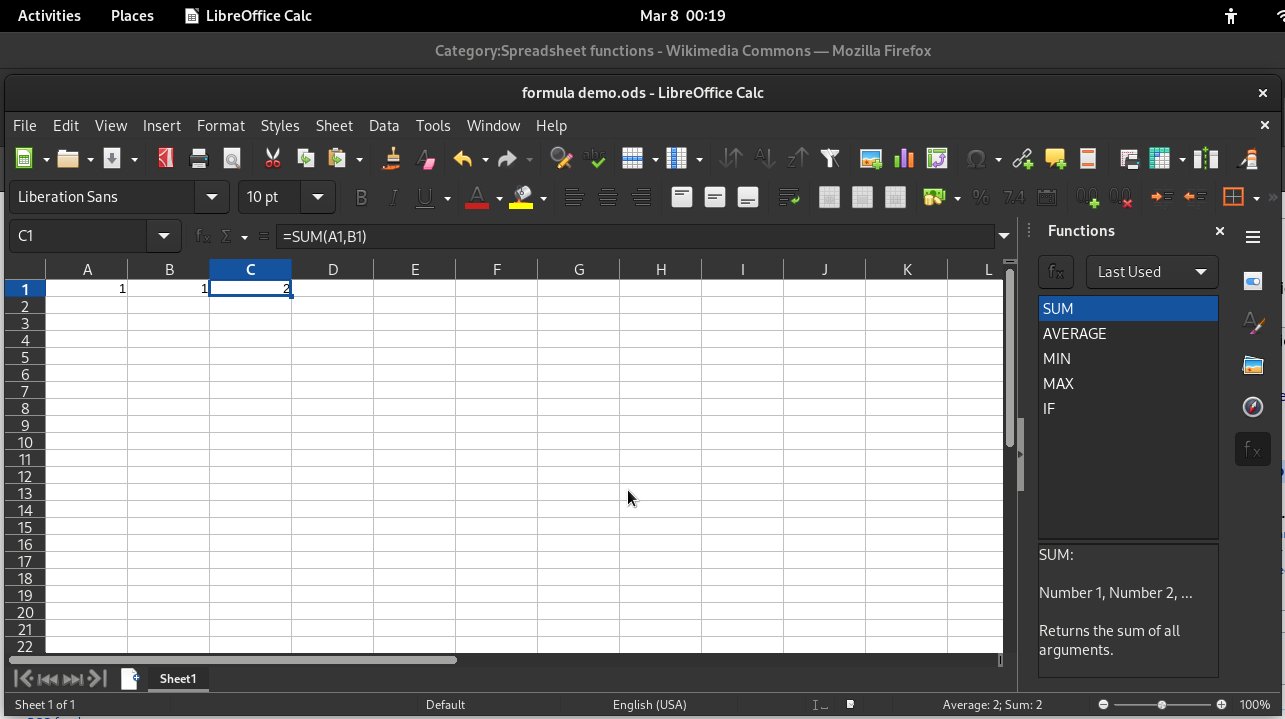
Spreadsheets and PDFs think differently: a spreadsheet is a grid you can edit, while a PDF is a fixed printed page. Converting means laying the grid out as printable tables — column widths fitted to the page, text wrapped inside cells, header rows shaded and repeated on each new page.
This tool reads your workbook with SheetJS (the same library behind many online converters) and writes the PDF with pdf-lib, entirely in your browser. Formula results are carried over as their calculated values, so the PDF shows the numbers you see in Excel.
Straight talk: limits
Formatting is simplified — honestly. Cell fill colours, borders, fonts, charts, images, pivot tables and conditional formatting are not carried over; the PDF shows clean tables with values and headers. Formulas appear as their calculated values, not as formulas. For pixel-exact output including charts and colours, use Excel's own Export to PDF.
Very wide sheets shrink to fit. A sheet with dozens of columns is squeezed onto the page width, which can make text small. For wide data, prefer landscape orientation and a smaller text size, or split the sheet first.
Excel to PDF FAQ
Which spreadsheet formats work?
.xlsx and .xls (Excel), .csv (comma-separated values) and .ods (LibreOffice/OpenDocument). Google Sheets exports .xlsx — download your sheet in that format first.
Will my formulas still calculate in the PDF?
No — a PDF is not a spreadsheet. Formula results are shown as their calculated values, exactly as they appear in Excel. The PDF is for reading, printing and sharing, not calculating.
What happens to charts and images?
They are not carried over — this converter renders values and headers as clean tables. If your sheet's charts matter, use Excel's own Export to PDF, which preserves them.
Can I convert just one sheet?
Yes — after adding the file, the sheet dropdown lists every sheet in the workbook. Pick one, or leave “All sheets” to convert the whole workbook with each sheet starting on a fresh page.
Is my spreadsheet uploaded anywhere?
No. The file is read and the PDF is built entirely in your browser. No data ever leaves your device.
Why is the text small on wide sheets?
Wide tables are fitted to the page width so nothing is cut off. Use landscape orientation and the small text size for the most columns per page, or split very wide sheets before converting.
Is this really free?
Yes — unlimited conversions, no watermark, no account, no payment details. The conversion runs in your browser, so there is nothing to meter.
Sources & trust
Spreadsheet reading uses SheetJS; PDFs are written with pdf-lib. Microsoft Excel's own Export to PDF remains the reference for pixel-exact output with charts and formatting. Researched by PDFBuddyFree Team · Last updated 16 November 2026.
You may also need
Card photos: Screenshot: LibreOffice Calc 24.8.3.2 by Ahunt / Wikimedia Commons, GPL · Screenshot: Arlo Barnes / Wikimedia Commons, CC0 · Sage Ross (WMF) / Wikimedia Commons, CC BY-SA 3.0




