Researched by PDFBuddyFree Team · Last updated November 11, 2026 · Data: ISO 216 paper sizes + html2pdf.js documentation
Free HTML to PDF Online — Turn Web Pages into PDFs
Paste any HTML — an invoice, a report, a letter — and download it as a clean PDF in seconds. The conversion happens entirely in your browser, so your content is never uploaded to a server. A live preview shows exactly what the PDF will contain, and a sample invoice is preloaded so you can try it right now.

🔒 Your HTML never leaves this page
- The page is rendered and converted 100% in your browser — nothing is uploaded to any server.
- No account, no email capture, no tracking of your documents.
- Close the tab and the code is gone — by design. Why that matters →
Live preview — this is exactly what the PDF will contain
How to convert HTML to PDF in 4 steps
- Paste your HTML. Drop in the full page code or just a fragment — headings, tables, inline styles and text all work. A sample invoice is preloaded so you can try it instantly.
- Check the live preview. The preview below the form shows exactly what the PDF will contain. Fix any markup problems here, not after downloading.
- Pick the page size. A4 portrait fits European invoices and letters; Letter fits US documents; landscape suits wide tables.
- Download the PDF. One click gives you a clean, watermark-free PDF — ready to email, print or archive.
💡 PDFBuddyFree verdict: paste HTML, get a PDF — without handing your page to a server
Every major converter — iLovePDF, Smallpdf, Adobe — runs HTML to PDF on its own servers, which means your page content is uploaded first. This tool uses the same open-source rendering approach (html2canvas + jsPDF) but runs it on your device, so an invoice with client names and prices never travels anywhere. The trade-off is honest: the page is rendered as a high-quality image inside the PDF, so text is not selectable the way a print-to-PDF would be — for a text-selectable result, use your browser's own Print → Save as PDF on a page you trust. A4, the default here, is 210 × 297 mm under ISO 216 — the paper size used across Europe (ISO 216).
Why convert HTML this way for business
🧾 Invoices from your own templates
Many small businesses already have an HTML invoice template. Paste it here, change the numbers, download the PDF — no new software, no monthly plan. For a guided form instead, try our free invoice generator or the VAT invoice creator.
🔒 Client details stay private
An invoice carries names, addresses and prices. Server converters receive all of it; this one never sees it. Our safety guide explains how to check that claim yourself in the Network tab.
📄 Reports and certificates
Weekly reports, training certificates, price lists — anything you can write in HTML becomes a shareable PDF. Build the content once, reuse the template every week. A price-list maker and certificate maker cover the most common cases with forms.
🌍 A4 and Letter, both covered
European clients expect A4; American clients expect Letter. Pick the size your reader uses and the PDF prints correctly on their side — no more cut-off margins.
🖨️ Print-ready output
The PDF is rendered at high resolution with 10 mm margins, so it prints cleanly on home and office printers. For multi-page documents, keep the HTML to a few pages for the sharpest result.
🧰 Then finish the PDF
Need page numbers, a watermark or a signature? Add them after conversion with our page-number tool, watermark tool or online signing tool — all in-browser too.
Straight talk: limits
🖼️ Rendered as an image
The PDF contains a high-resolution image of your page, so text cannot be selected or copied from it. If you need selectable text, use the browser's Print → Save as PDF instead.
⚙️ No JavaScript runs
Scripts inside your HTML are not executed during conversion. Charts drawn by JavaScript will come out blank — paste a static version of the content instead.
🌐 External images may not load
Images from other websites only render if their server allows cross-origin access. For reliable results, host images on a CORS-enabled server or leave them out and add them with the image tool afterwards.
HTML to PDF FAQ
Is this HTML to PDF converter really free?
Yes — unlimited conversions, no account, no payment details. The conversion runs entirely in your browser with the open-source html2pdf.js library (html2canvas + jsPDF), so there is nothing to meter and no file ever reaches a server.
What HTML can I convert?
Any HTML you paste: invoices, reports, letters, certificates, simple landing pages, tables and styled text. The preview shows exactly what will be converted, so you can fix the markup before downloading.
Does it fetch a live web page from a URL?
No — and that is a deliberate privacy choice. You paste the HTML itself, so no page is fetched and no tracking happens. To convert a page you own, open it in your browser, view source, and copy the HTML here; or print it to PDF from the browser for a pixel-perfect copy.
Will my CSS and images work?
Inline styles, embedded style blocks, web-safe fonts, tables and colours all render. External images only render if they allow cross-origin access — for reliable results, use images hosted on a server that sends CORS headers, or skip remote images and add them to the PDF afterwards with our add-image tool.
What page size does the PDF use?
A4 portrait by default, with a 10 mm margin — the standard for invoices and letters across Europe. You can switch to Letter (US) or A4 landscape from the options above the button.
Is it safe to paste an invoice with client details?
Yes. The HTML is rendered and converted by JavaScript on your device — nothing is uploaded. Check the Network tab: the only network request is loading the conversion library itself. Close the tab and your data is gone.
What are the limits?
Very long pages (dozens of screen-heights) can be slow because the page is rendered as an image first — keep documents to a few A4 pages for the best result. JavaScript inside your HTML does not run during conversion, and videos or interactive widgets become static.
Can I use the PDF for business?
Yes — the PDFs have no watermark and no usage restriction. Pair it with our invoice generator for a guided form, or paste any HTML template you already use.
HTML to PDF vs server-upload tools: the privacy contrast
Adobe, iLovePDF and Smallpdf all convert HTML on their servers: your code is uploaded, rendered remotely, and the file is deleted after an hour. That is fine for a public web page, but an invoice or an internal report carries private data. This page renders the same way — the same open-source libraries — but inside your own browser tab, so the content never leaves the machine. The price of that privacy is that very long or script-heavy pages convert more slowly than on a server farm; for a normal invoice, letter or report you will not notice the difference.
You may also need
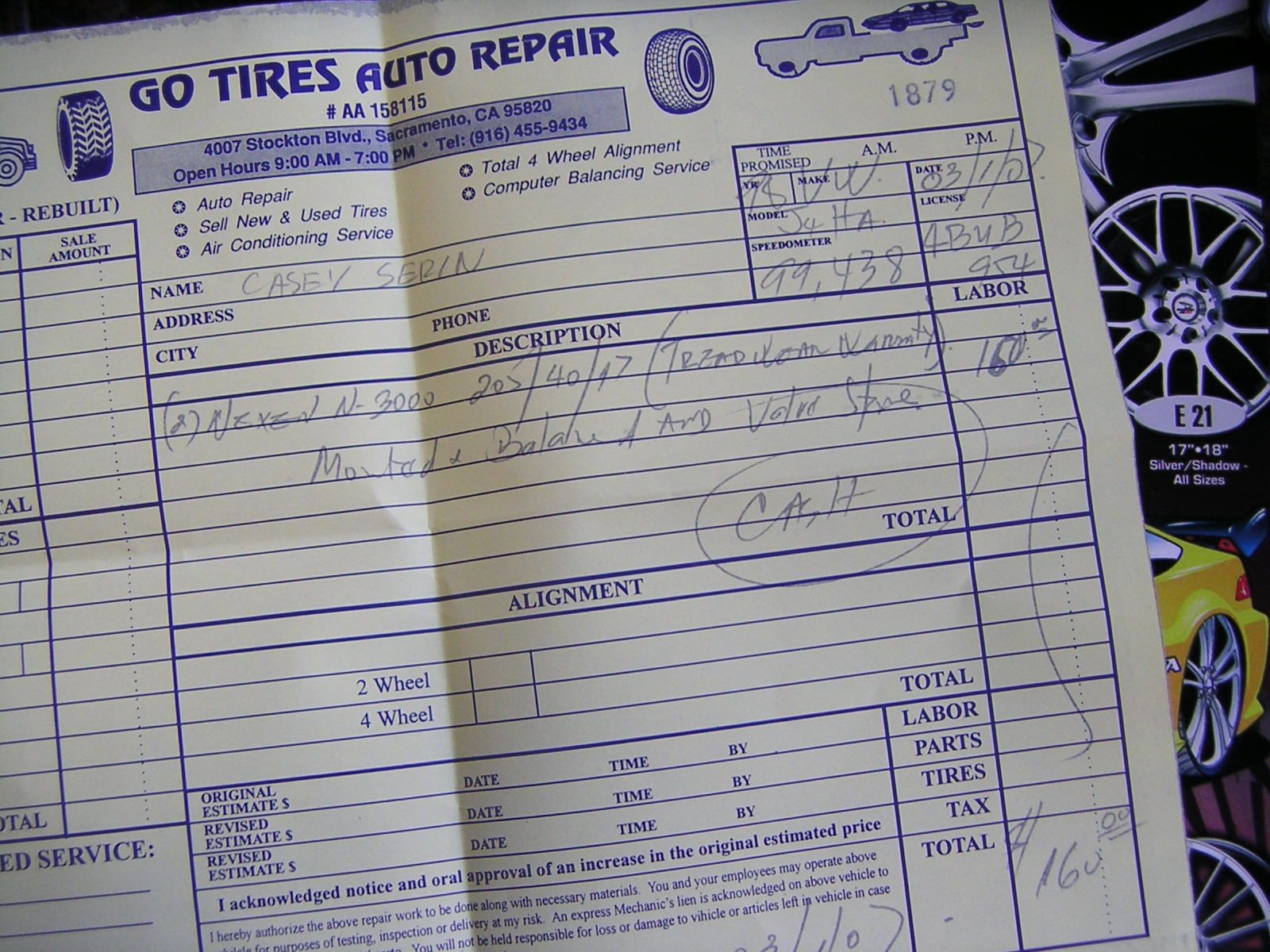

Card photos: Casey Serin / Wikimedia Commons, CC BY 2.0 · Johan Schiff / Miljöpartiet de gröna, Wikimedia Commons, CC0 · European Commission (Christophe Licoppe) / Wikimedia Commons, CC BY 4.0





Educational content only. Nothing on this site is legal or professional advice.