A scanned book, a double-page spread, an A3 sheet saved as one wide page — sometimes one page is really two pages stuck together. This tool cuts every page of your PDF in half, left and right (or top and bottom), so each half becomes its own page. A 20-page scan of double-page spreads becomes a clean 40-page document you can read, print, or send page by page. Everything happens in your browser; your file is never uploaded.
One PDF at a time — scanned books and double-page spreads work best
This PDF has 0 pages. Each one will become two pages in the output.
For a scanned book, pick left/right. For a page that holds two stacked pages, pick top/bottom.
Honest scope: this tool cuts pages by their geometry — it does not read your document or detect where one page ends and the next begins. It works best on pages that are exactly two pages side by side. Text that crosses the middle of a page is cut in two.
Every PDF page is a rectangle, and this tool divides that rectangle into two equal halves. The left half becomes one page and the right half becomes the next (or the top half and then the bottom half, if you choose that cut). Nothing is re-rendered as a picture: the page content is kept as it was, so text stays selectable and searchable, and the file does not grow the way a scan-to-image conversion would.
The classic use is a scanned book. Many scanners and phone apps save an open book as one wide page per spread — left page and right page together. Reading that on a phone or an e-reader is miserable, and printing it wastes paper. Cutting each spread in half gives you one page per book page, in the right order, ready to read. The same trick works for A3 sheets saved as one page (cut them into two A4 pages), for two-up lecture slides, and for forms printed two to a page.
| Your starting point | Cut to pick | What you get |
|---|---|---|
| Scanned open book (two pages side by side) | Left / right | One page per book page, in reading order |
| A3 page saved as a single wide page | Left / right | Two A4-sized pages |
| Two stacked pages on one sheet | Top / bottom | Two separate pages, top first |
| Two-up slides (two slides per page) | Left / right | One slide per page |
If your spreads are not centred — say the book was scanned slightly off-centre and the gutter sits left of the middle — the cut still lands exactly in the middle of the page, so one half will carry a sliver of the other page. For that case, crop the page first with our free crop tool to centre the spread, then split it here.
The cut is always exactly in the middle. This tool does not detect the gutter between two pages, so an off-centre scan splits slightly off-centre. Text crossing the middle is cut in two — a word or picture that straddles the centre line will be split across the two new pages, which is expected: the tool cuts geometry, not content. Rotated pages: pages saved with a 90° rotation flag are split along the edge that is “across” once rotated, which is handled automatically, but if a page looks wrong after splitting, rotate it first with our free rotate tool and try again. Very large files are limited only by your device's memory — there is no server limit because there is no server. Your files never leave your device.
For PDFs where one page is really two pages: scanned books saved as double-page spreads, A3 sheets saved as one wide page, or two-up slides. Cutting each page in half gives you one page per real page, in the right order.
Yes. The pages are cut, not re-rendered as images, so the text layer, fonts and links survive. A 10-page scan becomes a 20-page PDF with the same text, just divided across twice as many pages.
Left/right for the usual case: a book spread, an A3 sheet, or two slides side by side. Top/bottom when one page holds two stacked pages, for example a form printed two-up vertically. If you pick wrong, just run the tool again on the original with the other setting.
It will split exactly in the middle of each page, so an off-centre spread gives one half slightly wider than the other, with a sliver of the facing page. Crop the pages first to centre the spread, then split — our free crop tool does that in your browser too.
Barely. The content is reused, not duplicated as images, so the output is roughly the same size as the input. The page count doubles, but the bytes do not.
Not on this page — every page is cut. If only a few pages are spreads, split the whole file here, then delete the unwanted halves with our free delete-pages tool, or extract just the spreads first with the split-by-range tool and split only those.
No. The splitting runs entirely in your browser with the open-source pdf-lib engine. Nothing leaves your device — you can verify this by turning off your Wi-Fi after the page loads and running the tool.
Yes — unlimited files, no watermark, no account, no page limit. The only limit is your device's memory on very large files.
Page cutting uses pdf-lib 1.17.1, the open-source JavaScript PDF library, running entirely in your browser. The PDF page-box model (media box and crop box) this tool relies on is defined in the PDF specification.
Sources checked 29 November 2026. Tool claims on this page describe this site's own in-browser implementation.
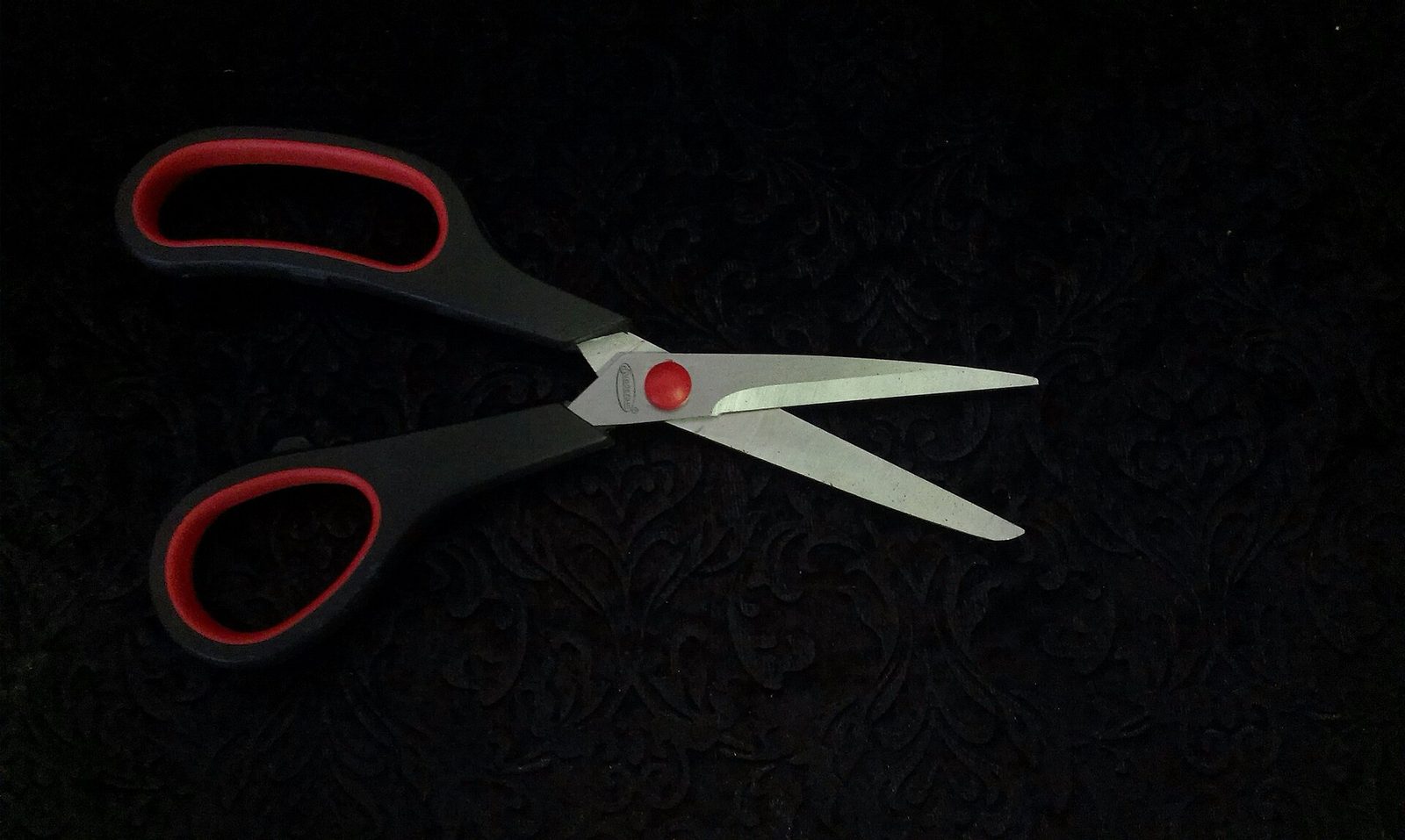
Card photo: Shane Cyrus / Wikimedia Commons, CC BY-SA 3.0
Educational content only. Nothing on this site is legal or professional advice.
 Free PDF Toolkit