Free Add QR Code to PDF — No Sign-Up, Instant
Put a scannable QR code on any PDF in seconds: drop the file above, type the link, and the code is stamped onto the corner you choose — every page, or just the first. It is free and unlimited — and the file never leaves your browser, unlike PDF4me, which uploads your document to its servers.
🔐 Your data never leaves this page
- The QR code is generated and stamped 100% in your browser — nothing is uploaded to any server.
- No account, no email capture, no tracking of your documents.
- Your files stay on your device by design. Why that matters →
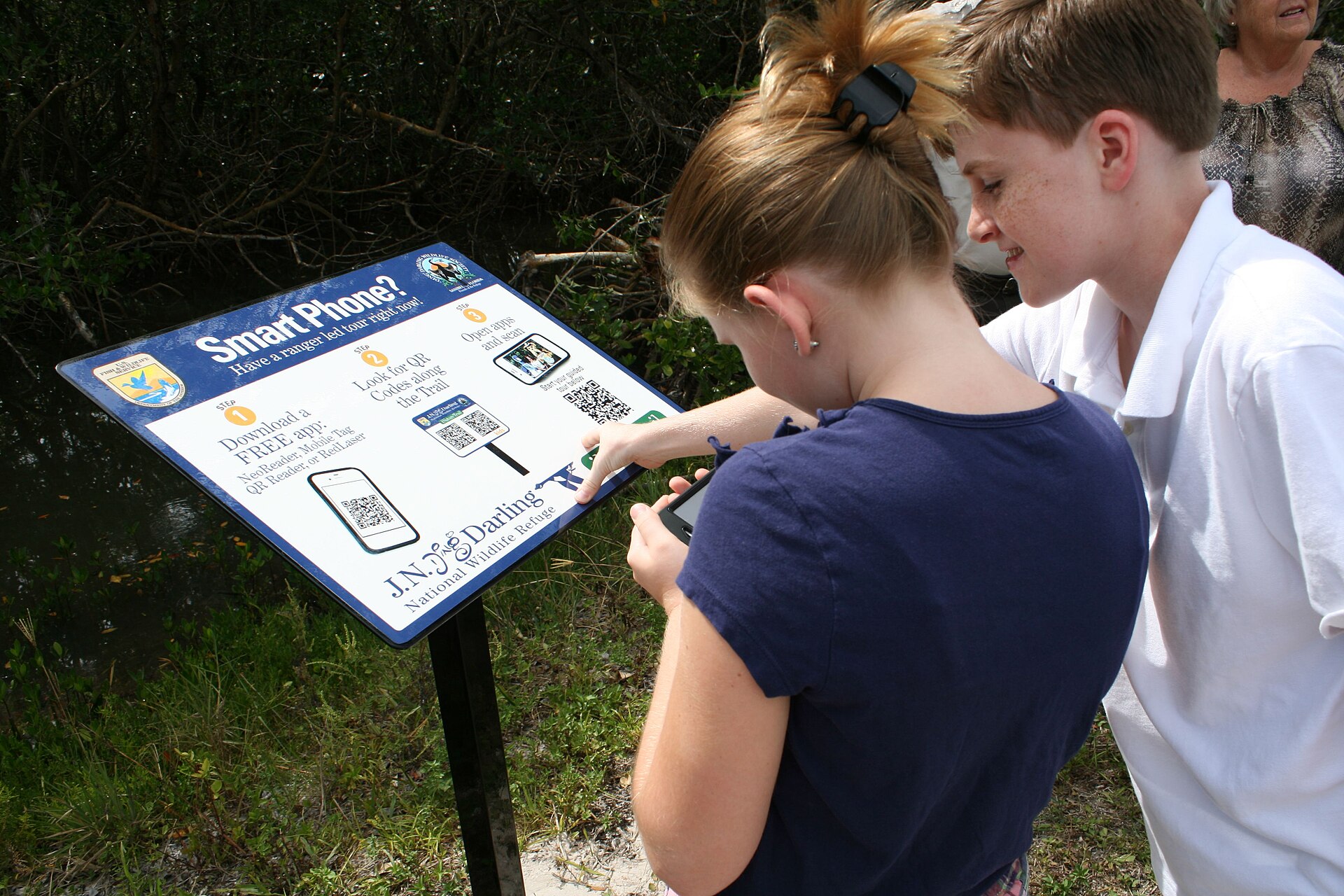
A QR code is stamped onto your pages — generated locally, nothing is uploaded
Live preview
Your QR code preview appears here.
Scan the preview with your phone before stamping — a code that scans in the preview scans in the PDF. Keep codes at least 72 pt so phones can read them after printing.
🚫 No upload
Your PDF never leaves this tab.
🔐 Files never leave your device
Generated and stamped on your own computer.
🙅 No sign-up
No account, no email, no daily cap.
How to add a QR code to a PDF in 4 steps
- Drop your PDF above. Click the box or drag the file in. Invoices, menus, brochures, handouts — anything with pages works.
- Enter what the code should hold. A website link, plain text, a Wi-Fi login or an email address. The live preview updates as you type — scan it with your phone to check it now.
- Choose the corner, the size and the pages. Bottom right at medium size (108 pt) suits most documents; first page only keeps the rest of the document clean.
- Press “Stamp QR Code & Download”. The finished PDF downloads at once. Scan it with your phone before you print or share it — a code that scans here scans everywhere.
Researched by PDFBuddyFree Team · Last updated 11 November 2026 · Data: Denso Wave — QR Code history (1994); ISO/IEC 18004 (QR Code)
Worked example: a café menu that links to the online menu
Take a small café with a two-page printed menu. The owner drops the menu PDF in, picks “Website URL”, types the online menu link, and leaves the defaults: bottom right, medium size, every page, caption “Scan me”. Ten seconds later the stamped PDF downloads. Printed and put on the tables, the code sits in the same corner on both pages, and a customer who scans it lands straight on the online menu — no typing, no searching. When the menu changes next month, the owner stamps the new link onto the new PDF the same way. The same trick works for a Wi-Fi code on a guest-house welcome sheet: pick “Wi-Fi network login”, type the network name and password, and guests join by scanning instead of asking at reception.
Why add a QR code to a PDF
🍽️ Menus & brochures
A printed menu cannot be tapped. A QR code in the corner turns it into a link — to the online menu, the booking page or the full catalogue.
🧾 Invoices & receipts
A code on an invoice can open the payment page or the order tracking page. The customer scans instead of typing a long link from paper.
🎟️ Event tickets & posters
A code on a ticket opens the event page, the map or the check-in form. One scan replaces a paragraph of directions.
📇 Business cards & flyers
A code on a flyer links to a portfolio, a shop or a WhatsApp chat. The paper stays short; the phone does the rest.
🎓 Class handouts
A code on a worksheet opens the video, the reading or the submission form. Students scan it instead of copying a URL off the board.
🔒 Private by design
Server tools upload your whole document to stamp a code on it. Ours never receives the file at all, which is exactly how contracts and invoices should be handled. Our safety guide explains the difference.
The number that explains the whole format
The QR code was invented in 1994 by Denso Wave in Japan to track car parts — and a single code can hold about 4,000 characters. A website link is only a few dozen characters, so there is room to spare; that spare capacity is what makes the code readable even when part of it is smudged or badly printed. The name says it: Quick Response — a phone reads it in under a second.
Straight talk: limits
◼️ Codes need contrast and size
A QR code is black squares on white paper. Keep it at least 72 pt and never print it over a photo or a coloured background — phones cannot read a code they cannot see clearly.
🔗 The code is only as good as the link
A printed QR code is fixed forever. If the link changes, the code points at the old page. Always scan the finished PDF before printing 500 copies.
🖨️ Works on scanned PDFs too
The code is stamped onto the page itself, so it works on scanned documents as well as born-digital ones — the scanner's image just gets a code on top.
Sources: Denso Wave — QR Code development history (1994); ISO/IEC 18004:2015 (QR Code bar code symbology). This page is not affiliated with Denso Wave.
Add QR Code to PDF FAQ
Is this QR code tool really free?
Yes — unlimited PDFs, unlimited codes, forever. No trial, no daily cap, no watermark, no account and no payment details. It runs entirely in your browser, so there is nothing to meter.
What can the QR code link to?
A website URL, plain text, a Wi-Fi network login, or an email address. Pick the type above and the tool formats the code correctly — a Wi-Fi code, for example, makes a phone join the network the moment it is scanned.
Will the QR code still scan after printing?
Yes, if it is big enough and printed clearly. Keep the code at 72 pt or larger, print it black on white, and test it with your phone before printing a large run. Small, faint or stretched codes are the ones phones struggle with.
Can I put the code on every page?
Yes — “Every page” is the default, so a code on a multi-page menu or handout is always in reach. Choose “First page only” or “Last page only” when the rest of the document should stay clean.
Does it work on scanned PDFs?
Yes. The code is stamped onto the page as an image, so it works on scanned documents exactly like born-digital ones. The scan quality does not matter to the code — only to the text underneath it.
Can I add a Wi-Fi QR code?
Yes. Choose “Wi-Fi network login”, type the network name (SSID) and the password, and pick the security type. Guests scan the code on your welcome sheet and join the network without typing anything.
Is my file uploaded anywhere?
No. The QR code is generated and the PDF is stamped on your own device. You can verify it yourself: open your browser's Network tab while stamping and you will see no upload. That is the whole point of this site — your documents stay yours.
Can I change the code after stamping it?
Not on a printed copy — a printed QR code is fixed. But regenerating the PDF takes seconds: drop the original PDF in again, type the new link, and download a fresh stamped copy.
🔐 Your files stay with you
- Processing runs 100% locally in your browser — nothing is uploaded to any server.
- No account, no email, no tracking of your documents.
- GDPR-friendly by design: we never receive your data in the first place.
You may also need


Card photos: Johan Schiff / Miljöpartiet de gröna, Wikimedia Commons, CC0 · Petar Milošević / Wikimedia Commons, CC BY-SA 4.0 · Julio Lopez / Pexels, Pexels Licence




