Free 📱 QR Code Sheet Maker — Print QR Sheets as PDF, No Signup
Print a QR code sheet as a PDF — one big table stand for a counter, or 4, 9 or 16 sticker labels on a single A4 page with cut guides. Website, Wi-Fi or plain text. Free, unlimited, built 100% in your browser.
🔒 Your data never leaves this page
- QR codes are generated 100% in your browser — nothing is uploaded to any server.
- No account, no email capture, no tracking of URLs or Wi-Fi passwords.
- Private details stay on your device by design. Why that matters →
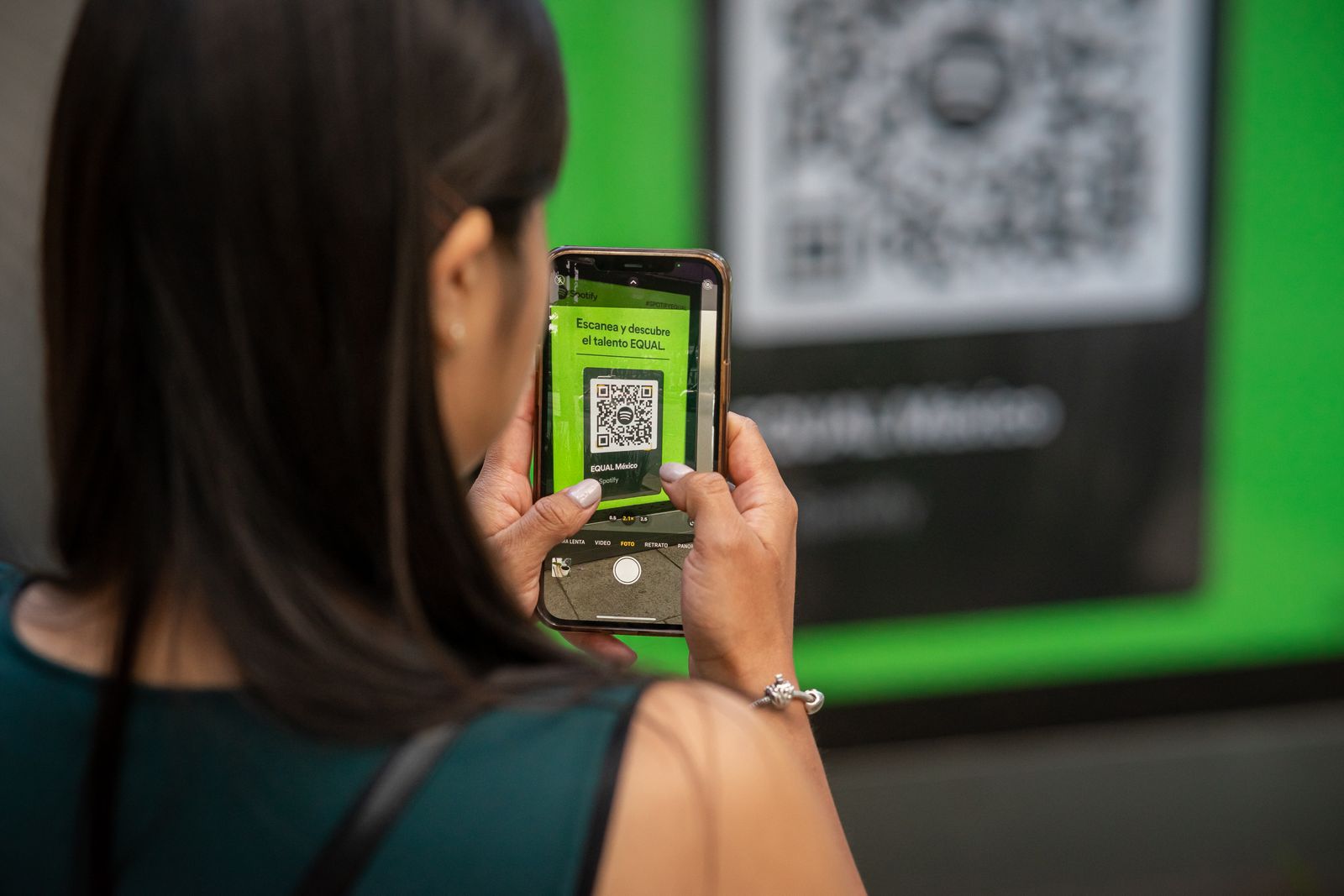
Researched by PDFBuddyFree Team · Last updated 7 November 2026
What should the code hold?
Preview
Your QR code preview appears here when you generate the sheet.
Print a QR code sheet in 4 steps
- Pick what the code holds — a website URL, a Wi-Fi login, or plain text — and type it in.
- Add a title and label — for example "Café Roma — Table 4" — then pick a layout: table stand or a 2 × 2, 3 × 3 or 4 × 4 sticker sheet.
- Press Generate QR Code Sheet PDF — the A4 PDF is built in your browser and downloads instantly.
- Print at 100% scale on A4 — test-scan one code with your phone, then cut along the dashed lines.
Where a printed QR code earns its keep
QR codes were invented in 1994 by Denso Wave, a Toyota subsidiary, to track car parts — and the format is royalty-free, which is why it is everywhere today: menus, tickets, payments, Wi-Fi logins. A printed code beats a typed link every time a phone is already in someone's hand. These are static codes, so the content lives inside the pattern itself: they never expire, need no subscription, and work with unlimited scans.
| Layout | Best for | Code size on A4 |
|---|---|---|
| Table stand (1 code) | Restaurant tables, reception counters, shop tills | Large — scans from across the table |
| 2 × 2 (4 codes) | Counter signs, shelf labels, event badges | Large — easy to scan at arm's length |
| 3 × 3 (9 codes) | Table stickers, product packaging, classroom handouts | Medium — scans at close range |
| 4 × 4 (16 codes) | Asset tags, inventory labels, small packaging | Compact — keep the label text short |
Every sticker sheet prints with dashed cut guides, so a pair of scissors is all you need to separate the labels. Print at 100% scale with no "fit to page" shrinking — a scaled-down code is the most common reason a printed QR fails to scan.
Worked example — a café's menu codes
A café in Amsterdam wants a QR code on each of its 9 tables linking to the online menu. The owner picks "Website URL", types the menu link, sets the title "Scan for our menu" and the label "Café Roma — Table 4" (she will change the label per table), picks the 3 × 3 sticker sheet, and downloads the PDF. She prints one sheet, cuts out 9 identical labels, and sticks one on each table — then re-generates the sheet with a different table number in the label for a personalised set. Guests point their phone camera at the code and the menu opens — no app, no typing, no paper menus to reprint when prices change. For the Wi-Fi, she makes a second sheet with the "Wi-Fi login" type, so guests join the network by scanning instead of asking for the password.
📸 The PDFBuddyFree verdict
- Real print-sized layouts with cut guides — not a single PNG you have to lay out yourself.
- Wi-Fi codes included: guests join your network by scanning, instead of typing a long password.
- URLs and Wi-Fi passwords never leave your device — genuinely private by design.
Straight talk: limits
🔍 Always test-scan before a big print run
Print one sheet first and scan it with your own phone. Printer scaling, low ink or glossy paper can all make a code hard to read — catching it on one sheet beats reprinting a stack.
📶 Wi-Fi codes print your password in plain sight
Anyone who can see the sheet can read the network name and password from the code. Put Wi-Fi sheets where only guests can see them, and change the password if a sheet goes missing.
💾 Save the PDF
The form lives only in this tab and clears on refresh — download the sheet PDF before you leave, so you can reprint it any time without retyping.
QR Code Sheet Maker FAQ
Is this QR code sheet maker really free?
Yes — unlimited sheets, every layout, PDF download, forever. No trial, no watermark, no account, no payment details. The codes are generated in your browser, so there is nothing to meter.
Do I need to sign up or give my email?
No. The maker works the moment the page loads. There is no account and no email capture — which also means the form clears if you refresh, so download your PDF before leaving.
What can I put in a QR code?
Three things: a website URL (for menus, payment pages or booking links), a Wi-Fi login (network name and password — guests join by scanning, no typing), or any plain text such as a serial number or short message.
What layouts can I print?
Four: a single large table stand (one big code for a counter or table), or sticker sheets of 4 (2 × 2), 9 (3 × 3) or 16 (4 × 4) identical codes on one A4 page, with dashed cut guides so you can trim them with scissors.
Do the QR codes expire?
No — these are static QR codes, so the content is encoded directly into the pattern itself. They work forever, with unlimited scans, and need no subscription. The QR code format was created by Denso Wave in 1994 and is royalty-free.
Will the printed codes actually scan?
Yes, if you print at 100% scale on A4 with no scaling. The codes use medium error correction, so they still scan with minor wear. Always test-scan one printed sheet with your own phone before printing a whole stack.
Is my Wi-Fi password safe here?
Yes — the QR code is generated entirely in your browser and your password is only written into the printed code itself. Nothing is uploaded to any server. Keep the printed sheet where only your guests can see it, and change the password if a sheet goes missing.
Where is my QR data processed?
Entirely on your device. URLs, Wi-Fi passwords and text are typed into this browser tab and the PDF is built there — nothing is uploaded to any server, so private details stay private.
Sources & trust
QR codes were invented by Denso Wave in 1994; the format is royalty-free and the codes made here are static, so they never expire. Codes use medium error correction and print at true A4 size — always test-scan before a large print run. Researched by PDFBuddyFree Team · Last updated 7 November 2026.
You may also need
Card photos: Dmitry Makeev / Wikimedia Commons, CC BY-SA 4.0 · Petar Milošević / Wikimedia Commons, CC BY-SA 4.0




