End of the month, a pile of receipts, and a bookkeeper — or your own tax return — asking for one tidy sheet? Type each expense in below and download a clean monthly summary PDF: every item listed, totals by category, one grand total at the bottom. Free, unlimited and watermark-free — and it runs 100% in your browser, so your business spending never leaves your device.
By Amir Shahzad · Last updated 24 November 2026 · Data: your own figures, entered by you
| Date | Description | Category | Amount |
|---|
Honest limits: the PDF lists exactly what you type — it does not read your bank statements or receipts, and it cannot check your figures. Look over every amount before you download. Example rows are pre-filled so you can see the totals work: replace them with your own expenses.
Worked example: a Berlin freelancer’s November — train ticket €42.50 (Transport), client lunch €18.90 (Meals), accounting software €29.00 (Software) → grand total €90.40. Change any figure and the totals update live.
Quick answer: a monthly expense summary is a one-page sheet that lists every business expense from a single month — date, what it was, which category it belongs to and how much it cost — then adds up each category and gives one grand total. Freelancers hand it to their accountant, small businesses file it with the month’s accounts, and anyone doing a tax return uses it to prove what they spent. It is the document between a pile of receipts and a finished tax return.
Keeping it matters beyond tidiness. Under Article 244 of the EU VAT Directive (Council Directive 2006/112/EC), taxable businesses must keep copies of the invoices they issue and receive, and every EU member state sets its own retention period — commonly 6 to 10 years. A monthly summary does not replace the receipts themselves, but it is the index that makes the archive usable: when your accountant asks what you spent on travel in November, you hand over one page instead of a shoebox. Our Free expense tracker covers the same job day by day, and our Free receipt maker creates the individual receipts the summary lists.
Example: the pre-filled rows above are a Berlin freelancer’s November — €42.50 of transport, €18.90 of meals, €29.00 of software, €90.40 in total. That is the whole shape of the document: short lines, honest categories, one total. If an expense does not fit a category, put it under Other and write a clear description — a vague line is the one your accountant will ask about.
Seven categories cover almost every freelancer and small-business month. Use them consistently — the same category for the same kind of spending every month — so your summaries compare across months and your accountant does not have to re-learn your system.
| Category | What goes in it | Example |
|---|---|---|
| Travel | Flights, trains, taxis, mileage | Berlin–Hamburg train, €42.50 |
| Meals | Client lunches, coffee, working meals | Client lunch, €18.90 |
| Office | Stationery, printing, postage, phone | Printer paper, €12.40 |
| Software | Subscriptions, apps, cloud storage | Accounting software, €29.00 |
| Transport | Fuel, parking, tolls, public transport | Monthly transit pass, €49.00 |
| Accommodation | Hotels and stays on business trips | Two nights in Munich, €180.00 |
| Other | Anything that fits nowhere else — describe it clearly | Trade fair entry, €25.00 |
Keep the description specific: “lunch with client X” beats “lunch”, and “Adobe subscription” beats “software”. Your future self — and your accountant — will thank you in April.
These three look similar but do different jobs, and using the wrong one wastes an afternoon. An expense tracker is the daily habit: you log spending as it happens through the month. A monthly expense summary is the month-end document: the tracker’s entries, totalled by category, on one page you can file or send. A pile of receipts is not a document at all — it is the evidence behind the summary, and it still needs to be kept.
Work in this order: track during the month with our Free expense tracker, summarise at month end with this tool, then file the summary with the receipts. If you only ever do one of the three, do the summary — it is the one your accountant can actually use.
Never mix two months on one summary. A November expense on a December sheet will be questioned at tax time.
Add up the paper receipts once and compare with the grand total. A mismatch means a missing or mistyped line.
The summary is the index, not the proof. Keep the receipts themselves for the retention period your country sets.
If you spent in two currencies, make one summary per currency — or convert with the rate your country accepts and note it on the sheet.
A monthly expense summary contains exactly the data you least want on someone else’s server: what you spent, where, with whom, and how much your business makes. Server-based generators receive all of it, store it under their retention policy, and may keep backups after “deletion”. This tool adds up your figures with JavaScript on your own device — open the Network tab and verify it yourself: no upload happens. That is the same privacy promise behind our Free invoice generator and our safety guide, which explains the upload-vs-browser difference in plain terms.
The trade-off is honest and small: because nothing is stored for you, the form clears if you refresh — so download the PDF before leaving the page, and file it with your receipts. That is the entire cost of keeping your spending off the internet.
Affiliate disclosure: This page contains an affiliate link. If you buy through it, Free PDF Toolkit may earn a commission at no extra cost to you. See our Affiliate Disclosure.
Monthly summaries usually travel by email, and a free mailbox address does not look like a business. MailCheap provides private email hosting for your own domain, so your summaries arrive from a professional address you control.
A monthly expense summary is a one-page sheet listing every business expense from one month — date, description, category and amount — with totals per category and one grand total. Freelancers hand it to their accountant and small businesses file it with the month’s accounts.
Yes, as your own working document — it organises your expenses for the return. It is not tax advice and it does not calculate your tax. Keep the original receipts too, because the summary is the index, not the proof.
No. The tool only lists what you type — it cannot read bank statements, scan receipts or check your figures. To turn a bank statement PDF into a spreadsheet, use our bank statement to Excel tool instead.
As many as you need — there is no limit and no account. For very long months (over about 40 lines) the PDF continues onto a second page automatically.
EUR, USD and GBP. Use one currency per summary sheet; if you spent in two currencies, make one summary per currency.
Yes — unlimited summaries, every category, PDF download, forever. No trial, no watermark, no account, no payment details. It runs entirely in your browser, so there is nothing to meter.
No. The summary is assembled entirely in your browser with JavaScript — your expense figures are read from the form, totalled, and written into a PDF locally. Open the Network tab while you generate it and verify it yourself: no upload happens.
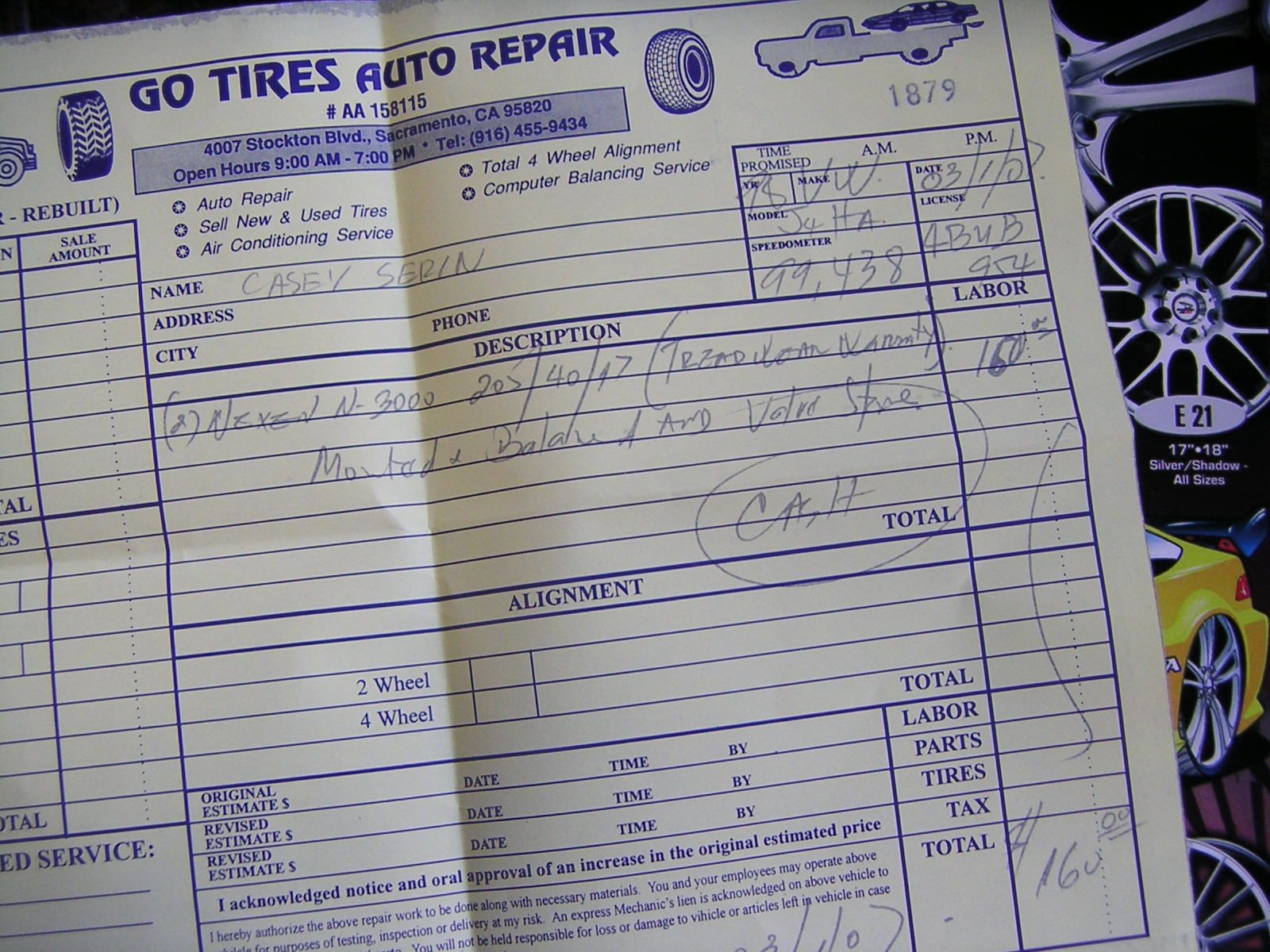
Card photos: Casey Serin / Wikimedia Commons, CC BY 2.0
Educational content only. Nothing on this site is legal or professional advice.
 Free PDF Toolkit