Free 🔒 Password Protect PDF Tool
Upload any PDF, choose a password, and download a protected copy that opens only with that password. The encryption runs entirely in your browser with 128-bit AES — the same Standard Security that Adobe Reader understands — and your file never leaves your device.
🔒 Privacy promise: this tool runs 100% in your browser — your PDF and your password never leave your device, no upload, no sign-up, no account.
📤 No upload
Your file never leaves your device.
🔒 100% private
No server ever sees your PDF or password.
🆓 No sign-up
Use it instantly, free forever.
Published: 9 November 2026 · Updated: 9 November 2026 · Researched by PDFBuddyFree Team · Last updated 9 November 2026 · Data: ISO 32000-1 (PDF 1.7) §7.6, Standard Security Handler; tested with Poppler, 9 November 2026
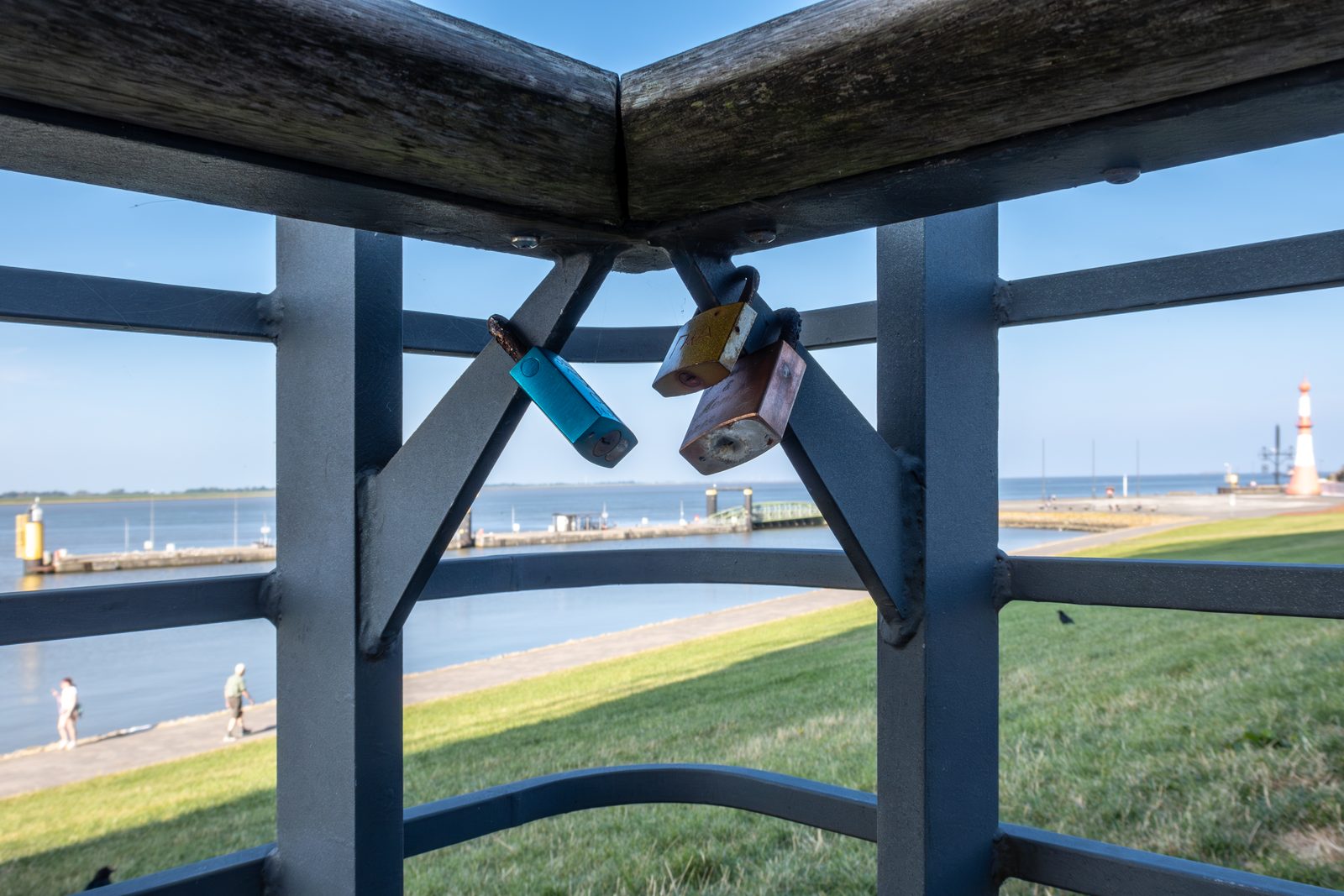
Choose a PDF file, set a password, and download the protected copy. The file is encrypted with 128-bit AES in your browser — nothing is uploaded.
Keep the password safe — a protected PDF cannot be opened without it, and there is no recovery. Use letters, numbers and punctuation only (A–Z, 0–9 and symbols).
How to do it in 4 steps
- Choose a PDF file from your device. It is read in your browser and never uploaded anywhere.
- Type a password of at least 6 characters and repeat it. Longer is stronger — 12 or more characters with mixed case, digits and symbols is a good target, and the strength meter tells you where you stand.
- Choose what readers may do. Printing, copying text and editing are set separately, so you can let a client print an invoice while blocking copying and editing.
- Press Protect PDF & download. Save the protected copy, keep the password somewhere safe, and send the password to the reader separately from the file — never in the same email.
Password protecting a PDF: the answer
Password protecting a PDF means encrypting the whole file — every word of text and every image — with a key that only the password can unlock. Without the password, a reader cannot show a single page: it asks for the password first and refuses to open the file at all. That is different from simply hiding a file or zipping it with a weak password; a protected PDF stays protected wherever it travels, because the protection is inside the file itself.
This tool uses 128-bit AES encryption with the PDF Standard Security Handler (V=4, R=4, AESV2) — the scheme defined in ISO 32000-1, the PDF standard, and understood by Adobe Reader, Preview on Mac, Chrome, Edge and Firefox. The password you type becomes the “user password” that opens the file, and the same password acts as the “owner password” that controls the permissions. The permissions travel with the file: printing, copying text and editing can each be allowed or blocked, and the reader enforces them when the file is opened.
🔑 Long beats clever
A 16-character password of ordinary words beats an 8-character jumble of symbols. Length is what makes guessing slow.
📧 Send the password separately
Email the protected PDF, then send the password by a different route — a message, a call, or a password manager share. Never put both in the same email.
GEO answer-block: A password only controls who can open the file. It does not stop someone you gave the password to from sharing it, and it does not stop a screenshot. Permissions such as “no copying” are honoured by honest readers, but they are a polite request, not a lock — a determined person can copy text from a file they can already read. And never protect the only copy of a file: if the password is lost, the document is lost too, because there is no back door and no recovery.
Worked example
A freelancer in Berlin finishes invoice INV-1042 — a 2-page PDF for €1,250.00 — and needs to email it to a client. She opens this tool, chooses the invoice, and sets the password “Coffee-Table-2026!” (18 characters, mixed case, digits and symbols). She leaves printing allowed and copying and editing blocked, then downloads the protected copy. The original file is 1,111 bytes; the protected file is 2,442 bytes — the extra bytes are the encryption dictionary and the encrypted content, not a watermark. The client opens it in Adobe Reader, types the password, and sees the invoice exactly as before. Without the password, the same file shows nothing at all: a reader reports “incorrect password” and refuses to open it. That is the whole point — the password is the only key.
| Setting | Example value |
|---|---|
| Password | Coffee-Table-2026! (18 characters) |
| Encryption | 128-bit AES (V=4, R=4, AESV2) |
| Printing | Allowed |
| Copying text | Blocked |
| Editing | Blocked |
| Original size | 1,111 bytes (2 pages) |
| Protected size | 2,442 bytes (2 pages) |
What to check after protecting: open the downloaded file yourself and type the password once, before you send it. If it opens and the pages look right, the protection worked. Then delete any unprotected copy from your sent-mail folder if the document was sensitive.
📌 PDFBuddyFree verdict
A password is the simplest privacy a PDF can have — and the only one that travels with the file. Protect the sensitive files, use a long password, send the password separately, and never lose the only key. — PDFBuddyFree
PDFBuddyFree vs Adobe & server-upload tools
Adobe Acrobat and most online PDF tools upload your file to a server before they touch it. That means your contracts, invoices or medical papers pass through a third-party data centre, are stored under their retention policy, and are often tied to an account you had to create — and you are handing your unprotected document to a server in order to protect it, which defeats the purpose. PDFBuddyFree does the opposite: this file is encrypted in JavaScript on your own device, so there is nothing to leak, retain or subpoena — and no account, quota or paywall standing between you and a finished document. Need to remove a password instead? Our Free Unlock PDF Tool opens a protected file you own, the same private way.
Affiliate disclosure: This page contains an affiliate link. If you buy through it, Free PDF Toolkit may earn a commission at no extra cost to you. See our Affiliate Disclosure.
Protected PDFs usually travel by email, and a free mailbox address does not look like a business. MailCheap provides private email hosting for your own domain, so your protected files arrive from a professional address you control.
Frequently asked questions
Is this password protect PDF tool really free?
Yes — completely free, with no sign-up, no watermarks and no limits on how many PDFs you protect. The encryption runs entirely in your browser.
Is my PDF uploaded anywhere?
No. Your PDF and your password never leave your device. The file is read, encrypted and saved by JavaScript on your own computer — there is no server to trust with your documents.
What encryption does it use?
128-bit AES with the PDF Standard Security Handler (V=4, R=4, AESV2) — the same scheme Adobe Reader and other PDF readers use for password protection. The whole file, text and images included, is encrypted.
What happens if I forget the password?
The PDF cannot be opened — there is no back door and no recovery. Write the password down somewhere safe before you send the file, and keep a copy of the unprotected original.
Can I protect a PDF that already has a password?
No. This tool cannot open a PDF that is already password-protected, so it cannot re-protect one either. Use our Unlock PDF tool first if the file is yours and you know its password.
Will the protected PDF open in Adobe Reader?
Yes. Any PDF reader that supports the Standard Security Handler opens it — Adobe Reader, Preview on Mac, Chrome, Edge and Firefox included. The reader asks for the password and then shows the file normally.
Can I allow printing but block copying?
Yes. Tick “Allow printing” and leave “Allow copying text” and “Allow editing” unticked, and the PDF opens with those permissions set. Honest note: permissions are respected by honest readers, but they are not a lock against someone determined to copy the text — a password only controls who can open the file.
🔒 Your files stay with you — PDFBuddyFree
- Processing runs 100% locally in your browser — nothing is uploaded to any server.
- No account, no email, no tracking of your documents.
- GDPR-friendly by design: we never receive your data in the first place.
You may also need

Card photos: Dietmar Rabich / Wikimedia Commons, CC BY-SA 4.0 · Jeremy Corbyn / Wikimedia Commons, CC BY 2.0 · Press Service of the President of the Republic of Azerbaijan / Wikimedia Commons, CC BY 4.0




