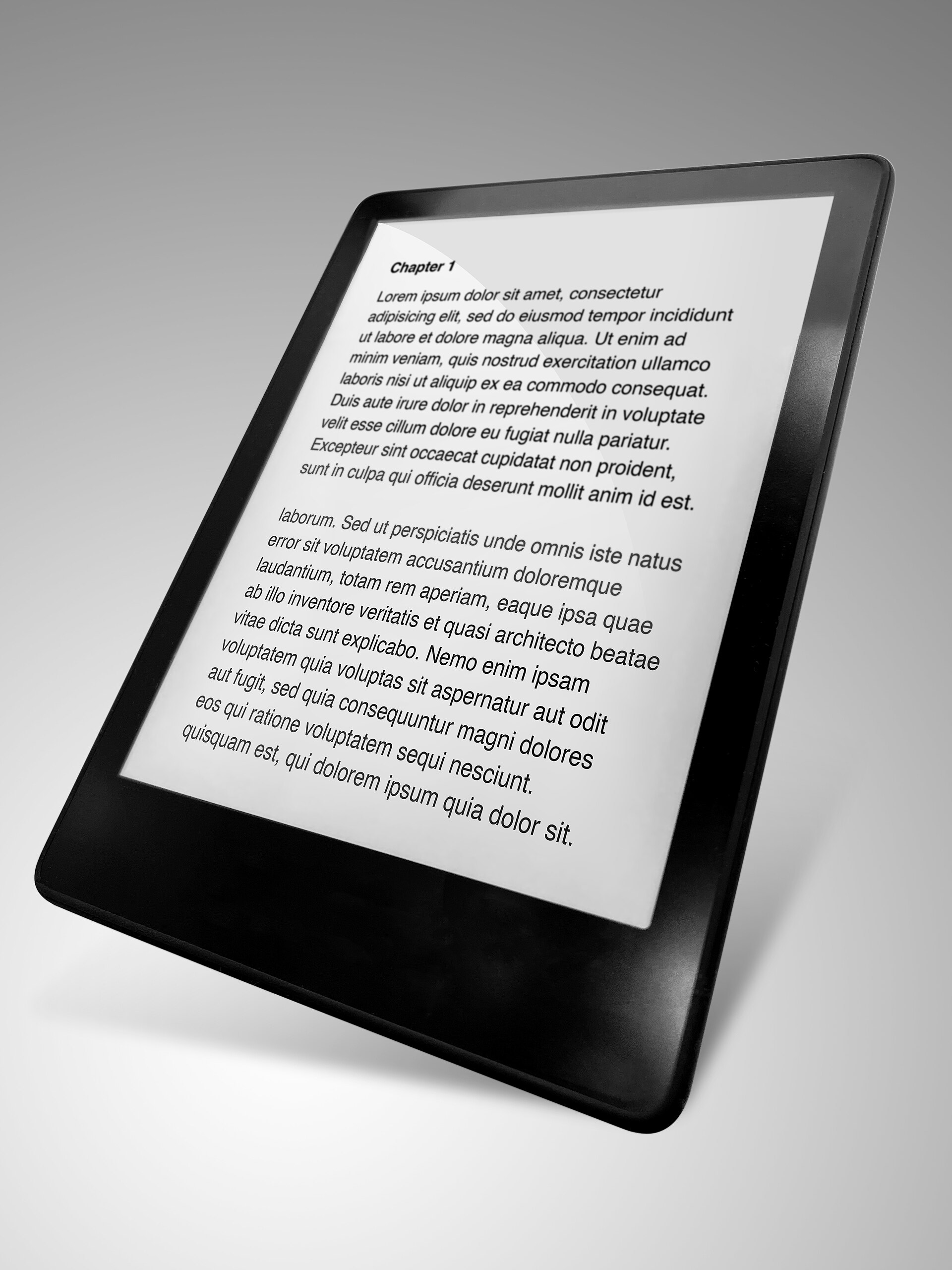
A Kindle reads PDFs — but not the way it reads books. A PDF sent to a Kindle keeps its exact layout, which is perfect for a form or a scanned article and painful for a novel, because the text does not reflow and you end up pinching and zooming on a six-inch screen. The good news is that Amazon's own Send to Kindle service is free, accepts PDF and EPUB files directly, and converts EPUBs into Kindle books for you. This guide shows the three ways to get a file onto a Kindle, which format to send for which document, and how to make a PDF readable on a small screen.
Quick answer: The easiest way to read a PDF on a Kindle is Amazon's Send to Kindle website: sign in, upload the file, pick your Kindle, and it appears in your library over Wi-Fi. The web uploader accepts files up to 200 MB each. EPUB files are accepted too — Amazon converts them into a Kindle book during delivery, so you do not need to convert anything first. Copying files over USB works for PDFs, but an EPUB copied over USB will simply be ignored by the Kindle, because the device does not read EPUB files directly.
| What you send | Best method | What happens |
|---|---|---|
| A PDF (form, scan, article, textbook) | Send to Kindle website | Arrives as a PDF; layout kept exactly, text does not reflow |
| An EPUB ebook | Send to Kindle website | Amazon converts it to a Kindle book; text reflows, font size adjustable |
| A Word document | Send to Kindle website | Amazon converts it; layout may change |
| A PDF by USB cable | Copy to the documents folder | Works — the Kindle reads PDFs natively |
| An EPUB by USB cable | Does not work | The Kindle ignores EPUB files copied by USB |
The format facts in this guide come from Amazon's own Send to Kindle help page, which lists the supported file types and limits; the link is in the Sources section below. Two things on that page catch people out: MOBI files are no longer accepted for sending by email, and every file must be DRM-free — a password-protected or encrypted document is rejected outright.
For a PDF, Amazon delivers it as a PDF: the layout is preserved exactly, which is what you want for a form, a scanned article or a textbook page — and the reason a novel in PDF is hard to read on a Kindle. For an EPUB, Amazon converts it on its servers into a Kindle book before delivery: the text reflows, the font size changes, and it behaves like a book you bought from the store. That conversion is the reason to send an EPUB rather than a PDF whenever you have the choice.
Every Kindle has its own Send-to-Kindle email address, shown in your Amazon account under Content & Devices. Attach a supported file to an email addressed to it, from an email address Amazon has approved for your account, and the document is delivered the same way as the web upload. The email route has tighter limits: 25 attachments per email and 50 MB total per email, against the web uploader's 200 MB per file. It is the right method when you are on a phone and the file is already in your inbox — forward it to your Kindle address and you are done.
Before you use it, check two settings in your Amazon account. First, the sending email address must be on your approved list, or Amazon silently drops the message. Second, MOBI files are no longer accepted for sending by email: Amazon reduced support for sending MOBI files to Kindle libraries via Send to Kindle for Email starting in November 2023. If you have an old MOBI, convert it to EPUB first — our EPUB converter works in the other direction, and a desktop tool such as Calibre converts MOBI to EPUB properly.
Plug the Kindle into a computer with a USB cable, open it as a drive, and copy a PDF into its documents folder. The Kindle reads PDFs natively, so the file opens straight away. This is the fastest route for a large PDF when Wi-Fi is slow, and it needs no Amazon account step at all.
It does not work for EPUBs: the Kindle's firmware only recognises files ending in .azw, .azw3, .kfx, .pdf and .mobi, and silently ignores anything ending in .epub. An EPUB copied over USB will never open — it is not a broken file, the device simply does not see it. To read an EPUB by USB you must first convert it to AZW3 or KFX on your computer, which is more work than letting Send to Kindle convert it for you. Note also that Kindle Scribe and Kindle devices released in 2024 need a separate Mac application for USB file transfers, according to Amazon's current transfer guidance — the wireless route avoids that entirely.
A PDF on a six-inch screen is a compromise, but a few steps make it bearable. First, send the right format: if the document is a book with flowing text, convert it to EPUB before sending — our PDF to EPUB tool extracts the text into an ebook, and Amazon then converts that into a reflowable Kindle book. A reflowable book lets you change the font size, which a PDF never will.
If the PDF must stay a PDF — a scan, a form, a textbook with diagrams — shrink it and tidy it before sending. A scanned PDF photographed on a phone can be several megabytes per page; our free compress tool shrinks it in the browser. A sideways scan is miserable on an e-reader: rotate it with our free rotate tool first. And if only some pages matter, extract them with our free split tool and send just those — a 40-page extract downloads faster and is easier to navigate than a 400-page file.
On the Kindle itself, open the PDF and use the built-in zoom and the page-view controls. Kindle's PDF reader lets you zoom into a page and pan around it, and some models offer a contrast setting that helps with faint scans. It is slower than reading a reflowable book, and that is the honest trade-off: a PDF preserves the page, a Kindle book preserves the reading.
Check the file is a genuine, DRM-free PDF, EPUB, DOC, DOCX or other supported type. A damaged file, an encrypted file or a badly structured ebook is rejected even with the right extension.
The sending address must be on your approved Send-to-Kindle list in your Amazon account. If it is not, Amazon drops the message silently — there is no bounce to tell you.
The Kindle ignores .epub files copied by USB. Send the EPUB through Send to Kindle instead, and Amazon converts it for you.
Email is limited to 50 MB total and 25 attachments. Use the Send to Kindle website instead — it accepts files up to 200 MB each.
Yes — the Kindle reads PDFs natively. Send one with Amazon's free Send to Kindle service, or copy it over USB. The layout is preserved exactly, but the text does not reflow, so a novel in PDF is hard to read on a small screen.
Yes, through Send to Kindle — the website, the app, or email. Amazon converts the EPUB into a Kindle book during delivery. But an EPUB copied directly over USB will not open: the Kindle ignores .epub files on its storage.
The Send to Kindle website accepts files up to 200 MB each. Sending by email is limited to 25 attachments and 50 MB total per email. For anything big, use the website.
No — and you should not. Amazon stopped accepting MOBI files for sending by email, and Send to Kindle accepts EPUB directly and converts it. MOBI is no longer the recommended target for Kindle delivery.
A PDF fixes every word in place, so the text cannot reflow or resize like a Kindle book. If the document is flowing text, convert it to EPUB first and send that instead; Amazon converts it into a proper reflowable book.
No. Send to Kindle rejects encrypted or DRM-protected files. Only DRM-free files can be sent — a book bought from one store generally cannot be sent to a Kindle this way.
Yes — Amazon's Send to Kindle service is free, with no subscription. You need an Amazon account and a Kindle or the Kindle app registered to it.
Sources checked 29 November 2026.
Educational content only. Nothing on this site is legal or professional advice.
 Free PDF Toolkit