📄 PDF Converter
Every conversion this site offers, in one place. Turn files into PDF, or turn PDF back into editable files and images — all free, all in your browser, nothing uploaded.
Convert files TO PDF

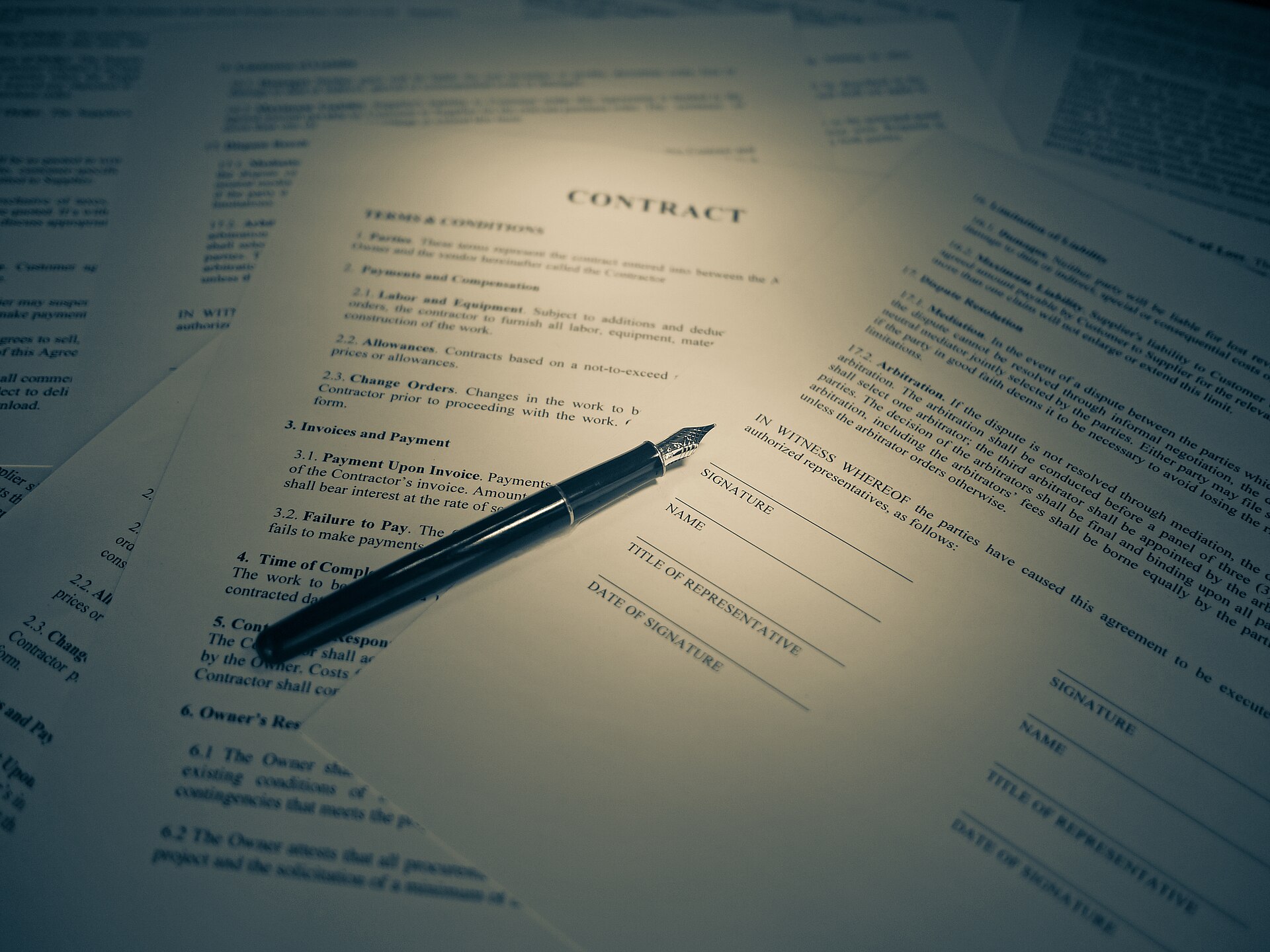
Card photos: Shixart1985 / Wikimedia Commons, CC BY 2.0 · Screenshot: Arlo Barnes / Wikimedia Commons, CC0 · DERDAKI ILIAS / Wikimedia Commons, CC BY-SA 4.0 · Dmitry Makeev / Wikimedia Commons, CC BY-SA 4.0 · Luis Laugga / Wikimedia Commons, CC BY-SA 3.0 · George Milton / Pexels · Acabashi / Wikimedia Commons, CC BY-SA 4.0 · Dvortygirl / Wikimedia Commons, CC BY-SA 4.0 · Markus Spiske / Unsplash via Wikimedia Commons, CC0 · Kskhh / Wikimedia Commons, CC BY-SA 4.0
Convert PDF to other formats
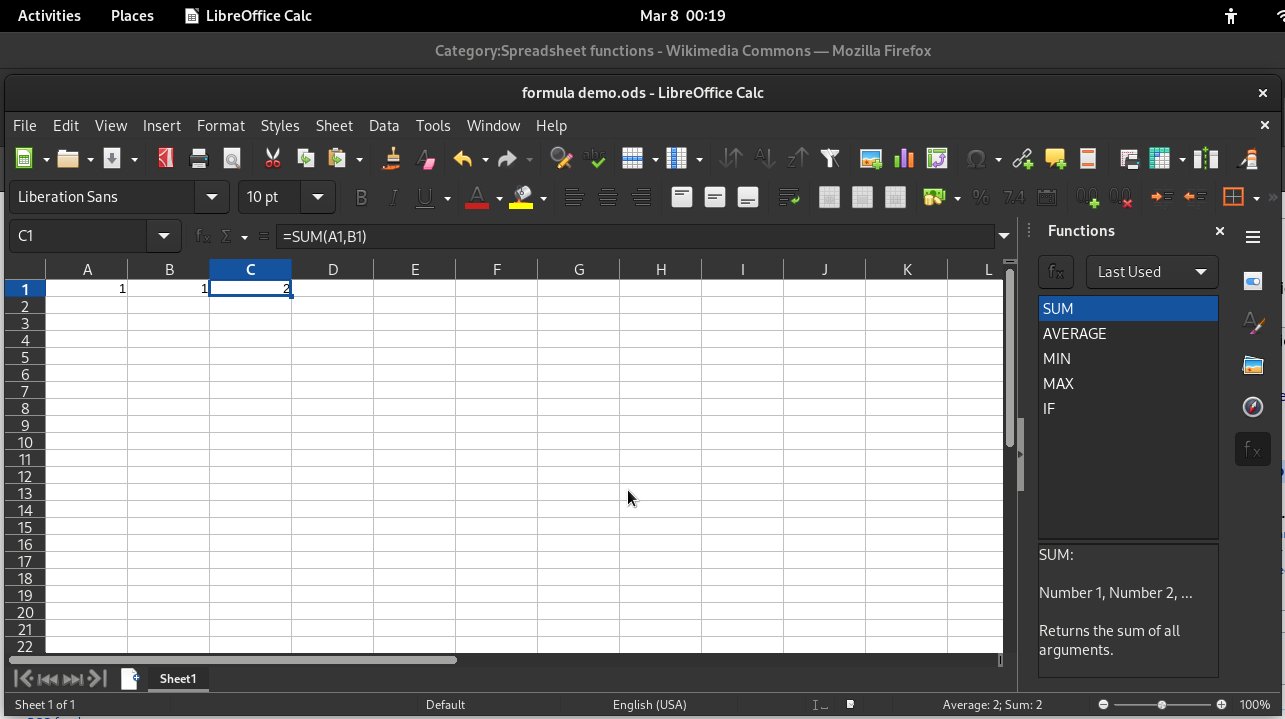
Card photos: Shixart1985 / Wikimedia Commons, CC BY 2.0 · Screenshot: LibreOffice Calc 24.8.3.2 by Ahunt / Wikimedia Commons, GPL · Garry Tucker, U.S. Fish & Wildlife Service / Wikimedia Commons, Public domain · Dmitry Makeev / Wikimedia Commons, CC BY-SA 4.0 · PNG keeps text and diagrams sharp because it compresses without losing detail. Photo: Dmitry Makeev / Wikimedia Commons, CC BY-SA 4.0 · Dvortygirl / Wikimedia Commons, CC BY-SA 4.0 · Kskhh / Wikimedia Commons, CC BY-SA 4.0 · Vyacheslav Argenberg / Wikimedia Commons, CC BY 4.0
Pick the right converter
- Starting from a document? Word, Excel and PowerPoint each have their own converter — use the matching one for the best result.
- Starting from images? JPG, PNG, WebP, HEIC and TIFF each have a dedicated tool. Scans go through TIFF; phone photos through HEIC.
- Starting from a PDF? PDF to Word gives editable text; PDF to Excel recovers tables; PDF to JPG/PNG gives pictures of pages.
- Need just one part? Extract text, tables or images without converting the whole file.
What a PDF converter can and cannot do
Converting to PDF is the easy direction: the converter lays your content out on pages and the result looks the same everywhere. Converting from PDF is harder — a PDF stores positioned text and pictures, not the original document structure — so the result is a faithful reconstruction, not the original file. Tables may need tidying in Excel; Word output may need a formatting pass.
Every converter on this page states its limits honestly on its own page. Nothing here uploads your files: conversion runs in your browser, which is also why these tools are free and unlimited.
Straight talk: limits
Fidelity varies by direction. To-PDF conversions are clean and predictable. From-PDF conversions reconstruct structure from positioned content and are never pixel-perfect replicas of the original editable file. Scanned PDFs contain pictures of text, not text — converting them to Word or Excel needs OCR first, which is a separate step.
PDF Converter FAQ
Which converter do I need for a Word document?
Use Word to PDF. It builds a clean, readable PDF from your document's text, headings, lists, tables and images — with honest limits about fonts and complex layouts stated on the page.
Can I convert a PDF back to an editable file?
Yes — PDF to Word for documents, PDF to Excel for tables, PDF to PPT for slides. The output is a reconstruction from the PDF's content, so expect a short tidying pass afterwards.
Do scanned PDFs convert to Word?
Not directly — a scan is a picture of text. You need OCR (optical character recognition) first to turn the picture into selectable text. A dedicated OCR tool is planned; until then, scans convert to images, not editable text.
Are all these converters really free?
Yes — every tool on this page is free, unlimited, with no watermark and no account. The work runs in your browser.
Are my files uploaded?
No. Every converter on this site runs entirely in your browser. Files never leave your device.
What is the difference between PDF to JPG and Extract Images?
PDF to JPG renders each whole page as a picture. Extract Images pulls out the individual picture files embedded in the PDF, at their original resolution.
Sources & trust
Converters on this site use pdf.js, pdf-lib, mammoth, SheetJS, JSZip, UTIF.js and heic2any — all running in the browser. Fidelity notes on each tool page describe what its conversion preserves. Researched by PDFBuddyFree Team · Last updated 16 November 2026.
You may also need
Card photos: Petar Milošević / Wikimedia Commons, CC BY-SA 4.0 · Sage Ross (WMF) / Wikimedia Commons, CC BY-SA 3.0 · KPNO/NOIRLab/NSF/AURA/J. Lockridge / Wikimedia Commons, CC BY 4.0




